Sound on Hover: Implement sound on hover with Vanilla JS, jQuery, and Wix Velo

Ever heard of sound on hover? It’s a neat little trick where a sound plays when someone’s mouse moves over something on your site, like a button or a photo. Think of it as giving your website a voice, making it feel more alive and responsive. You'll typically use a bit of JavaScript to get it working, but don't worry, it's easier than it sounds.
Why Bother with Audio Feedback in Web Design?
When a visitor interacts with your website, they expect something to happen. Usually, it's a visual cue—a button changes colour, an underline pops up, or an image gets a little bigger. But what if you could add another layer to that experience? Introducing sound on hover creates a richer, more memorable interaction. This isn't just a gimmick; when done right, it's a seriously powerful tool for engagement.
Think of the satisfying click of a real-life switch. That tiny sound confirms your action worked. On a website, a subtle swoosh as you browse a portfolio or a gentle pop on a navigation link does the exact same thing. It’s your site’s way of saying, "Yep, I see you. What's next?"
The Benefits of Auditory Cues
This little audio feedback loop can pack a surprising punch. A well-chosen sound can:
Boost User Engagement: Sounds just make things feel more fun and tangible, encouraging people to click around and explore.
Provide Clear Confirmation: It instantly tells a user that an element is interactive. No more guessing what's clickable and what's not.
Strengthen Brand Identity: A unique set of sounds can inject your brand's personality into the site, making you stand out from the crowd.
The secret ingredient here is subtlety. Your goal is to enhance the experience, not hijack it. A loud, jarring, or annoying sound will send visitors running for the 'back' button faster than you can say "user experience." The best hover sounds are the ones you barely notice consciously, but they contribute to an overall feeling of a polished, high-quality site.
Before we get into the nuts and bolts of how to actually do this, it’s worth remembering that sound is a design choice. It has a real impact on how people perceive your website. When you get it right, it can turn a static page into something dynamic and engaging.
When to Use Sound on Hover Key Considerations
Deciding whether to add sound effects can be tricky. This quick table should help you figure out if it's the right move for your project.
Use Case | Best For | Potential Pitfall |
|---|---|---|
Portfolio Websites | Showcasing creative work where a bit of flair and personality can enhance the projects. | Can be distracting if the sounds clash with the visual art. |
E-commerce Buttons | 'Add to Cart' or 'Wishlist' buttons to give a satisfying confirmation of the action. | Overuse can become annoying, especially during a long shopping session. |
Interactive Storytelling | Drawing users deeper into a narrative or game-like experience on a webpage. | Unskippable or loud sounds can completely ruin the immersive feel. |
Educational Sites | Providing feedback on quizzes or interactive learning modules. | In a quiet library or classroom setting, unexpected audio is a big no-no. |
Brand-focused Sites | Reinforcing a brand’s identity with custom sounds that reflect its personality. | If the sounds don't match the brand's vibe, it can feel cheap or off-key. |
Ultimately, the decision comes down to your audience and the goals of your site. If it adds value without getting in the way, it’s probably worth a shot.
Ready to build a more engaging website? The team at Baslon Digital specialises in creating custom Wix experiences that capture your brand's unique identity. Contact us today to start the conversation.
Getting Your Audio Files Ready for the Web
Before you can even think about adding a sound on hover effect, you need an audio file that’s actually ready for the web. This isn't just about grabbing any cool sound you find; it’s about making sure that little bleep or swoosh doesn't grind your entire site to a halt.
It’s a balancing act. You need decent audio quality, but you also need a tiny file size. A big, clunky file will seriously hurt your page load speed, and nobody wants that.
Picking the Right Audio Format
First things first, you have to choose the right format. Each one has its quirks, especially when you’re dealing with the web.
MP3: This is the king for a reason. It smushes audio files down to a really small size while keeping the quality good enough for most things. For a short hover sound, MP3 is almost always your best bet. Simple.
WAV: Steer clear of this one. WAV files are uncompressed, which means they sound fantastic but are absolutely massive. They're totally unsuitable for a hover effect where you need the sound to play instantly. A one-second WAV can be bigger than a ten-second MP3. Yikes.
OGG: This is the open-source cousin of the MP3. It often gives you slightly better quality for a similar file size and has great browser support. Still, MP3 is just a bit more universal, working pretty much everywhere without a fuss.
Squeezing Your Audio for Performance
Once you’ve got your sound, you absolutely have to compress it. For a hover effect, you should be aiming for a file size under 50KB. Honestly, the smaller, the better. Big audio files are a classic cause of lag, and a delayed sound just feels broken and defeats the whole purpose.
You don’t need fancy, expensive software for this. Free tools like Audacity or any number of online audio compressors can shrink your file down in seconds. Here's a pro tip: when you’re exporting, choose a mono track instead of stereo. This instantly cuts the file size in half, and for a quick pop or click, nobody will ever notice the difference.
Look, the goal isn't studio-quality perfection. It’s a tiny, functional sound that loads in a flash. A user will appreciate a fast, subtle pop way more than a high-fidelity swoosh that takes half a second to even start playing.
Where Should You Host Your Sound Files?
Finally, where is this little audio file going to live? You’ve got two main choices.
Self-Hosting: This just means uploading the file directly to your website’s server (or into the Wix Media Manager). It gives you total control, but it also means the delivery speed is tied to how good your web hosting is.
Using a CDN: A Content Delivery Network (CDN) is a bit more advanced. It stores your files on servers all over the world and delivers them from whichever one is closest to your visitor. This is usually faster but can add a layer of complexity and cost.
For tiny sound effects, self-hosting is perfectly fine and way simpler to manage. The most important thing you can do for performance is making sure that file is optimised properly in the first place. If you want to go deeper down the rabbit hole of site speed, check out our guide on how to improve website loading speed.
Taking a few minutes to prep your audio files correctly is the foundation for a good sound on hover feature. Get this part right, and you'll enhance the user experience instead of accidentally wrecking it.
Getting Your Hands Dirty with Vanilla JavaScript
For the purists out there who love clean, dependency-free code, using vanilla JavaScript is the best way to add a sound on hover effect. This approach gives you total control without bogging down your site with extra libraries. We'll start with the basic HTML building blocks and then sprinkle in a little JavaScript to make it all work.
First things first, you need something for your visitors to actually hover over. This can be a button, a link, a div, an image—pretty much anything you want. The trick is to give it a unique ID so our JavaScript can find it later.
Let's use a simple button for this example.
Hover Over Me!
See that tag? We've dropped it right into the HTML. The attribute is a friendly suggestion to the browser to get that sound file ready ahead of time. It's a small detail, but it helps make the sound play instantly when someone hovers, creating a much snappier experience. No one likes a laggy sound effect.
Making It Sing with JavaScript
With our HTML in place, it’s time to add the JavaScript magic. The logic is refreshingly simple: we just need to listen for when a mouse cursor enters the button's space and when it leaves. The method is our best friend here, and we'll be watching for two key events: and .
We start by grabbing the button and the audio element from the page using their IDs.
// Find the button and the audio file in the DOMconst interactiveButton = document.getElementById('interactive-button');const hoverSound = document.getElementById('hover-sound');
Next up, we attach our listeners. When fires, we play the sound. But here's the important bit: when happens, we pause the audio and reset its playback time to zero. This little step is crucial—it ensures the sound plays from the very beginning every single time the user hovers.
// Listen for the mouse entering the button's territoryinteractiveButton.addEventListener('mouseenter', () => { hoverSound.currentTime = 0; // Rewind to the start hoverSound.play();});
// Listen for the mouse leaving the button's territoryinteractiveButton.addEventListener('mouseleave', () => { hoverSound.pause(); hoverSound.currentTime = 0; // Reset it for the next time});And just like that, you've got a working sound effect for a single element. Simple, right?
What About Multiple Hover Sounds on One Page?
Okay, that works great for one button. But what if you have a whole gallery of images or a list of navigation links, and you want each one to have its own sound on hover? Creating individual event listeners for dozens of elements would be a nightmare to manage. A much smarter way is to use a shared class name to target them all at once.
By taking a class-based approach, you can apply the same interactive audio to many elements without repeating yourself. It keeps your JavaScript scalable, clean, and much easier to update down the line.
Let's say you've given all your interactive elements a class of . You can then loop through them and apply the same logic.
// Grab all the elements that need the hover soundconst soundElements = document.querySelectorAll('.sound-hover-effect');
// Go through each element and add the listenerssoundElements.forEach(element => { element.addEventListener('mouseenter', () => { // Logic to play a specific sound for this element goes here }); element.addEventListener('mouseleave', () => { // Logic to stop the sound goes here });});
This method keeps your code DRY (Don't Repeat Yourself) and beautifully organised. It's a clean, high-performance way to add interactive audio across your site using nothing but native JavaScript.
Ready to build a website that truly stands out? The team at Baslon Digital specialises in creating custom Wix websites that blend creative details with strategic design. Contact us today to discuss your project.
A Simpler Method Using jQuery
For those of you working on a project that already has the jQuery library installed, adding a sound on hover effect gets wonderfully efficient. If you’ve ever used jQuery, you’ll know its syntax is famous for being concise, often letting you do in one line what might take several in vanilla JavaScript.
Its real power lies in how effortlessly it selects elements and attaches event handlers. Instead of manually grabbing elements and looping through them, jQuery lets you target a whole group of items with a single selector. This is a game-changer for adding effects consistently across your site without writing repetitive code.
At its core, the process is the same whether you use vanilla JS or jQuery. A user action on an HTML element triggers some code that plays the sound. jQuery just makes writing that code a bit quicker.
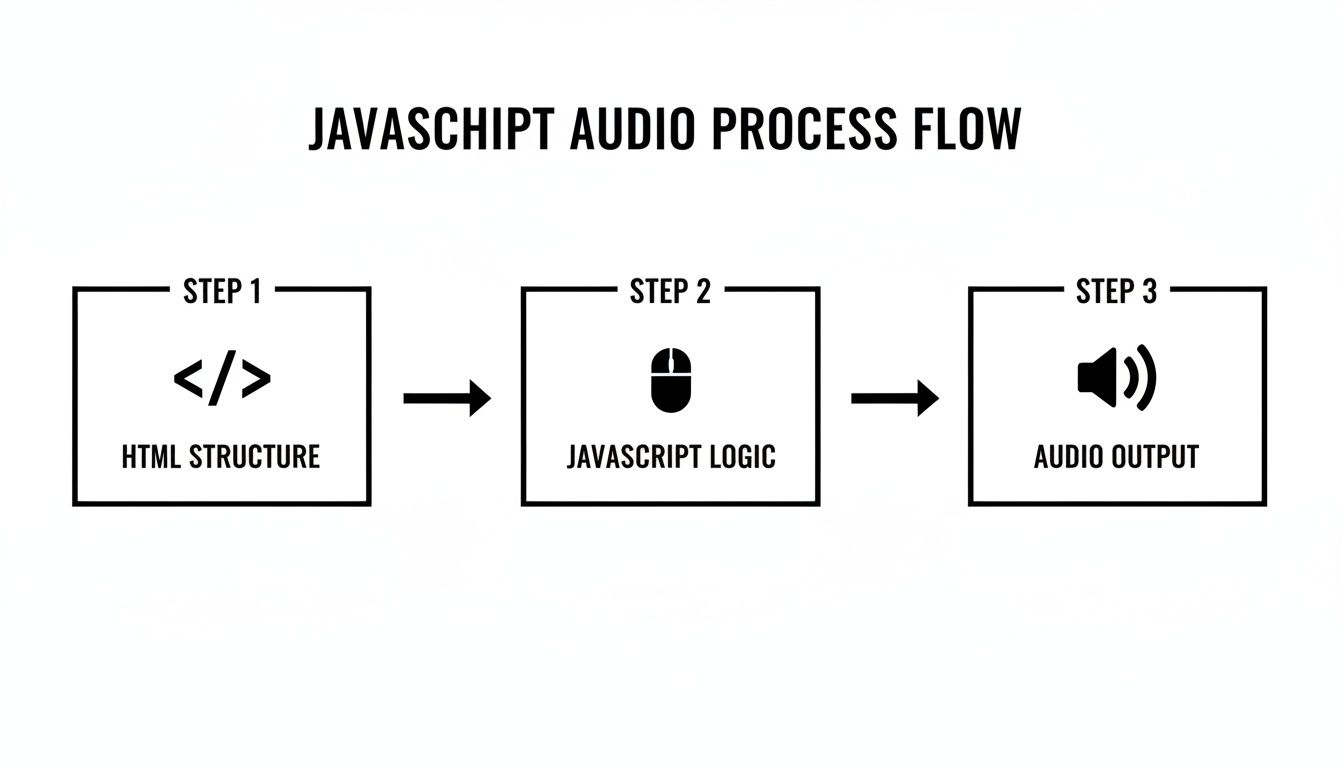
jQuery Implementation in Action
Right, let's get straight to the code. First, you'll need the same element in your HTML as the previous example. This is where we’ll point to our sound file.
Hover for Sound
Now for the jQuery magic. We can use the method, which is a neat shortcut that handles both the (hovering on) and (hovering off) events.
$(document).ready(function(){ const hoverSound = $('#hover-sound')[0];
// Target all elements with the class 'sound-btn' $('.sound-btn').hover( function() { // This runs when the mouse enters hoverSound.currentTime = 0; hoverSound.play(); }, function() { // This runs when the mouse leaves hoverSound.pause(); hoverSound.currentTime = 0; } );});
One small but critical detail is using . jQuery objects are essentially wrappers around standard DOM elements. To get to the underlying HTML element and use its native methods like and , you need to access it directly from the jQuery collection using .
And that’s all you need. This little snippet finds every element with the class and applies our sound logic. The code isn't just shorter; it's arguably more readable, especially if you're already in the jQuery ecosystem. It’s a fantastic way to add sound on hover to existing sites without adding any new dependencies.
Ready to take your website to the next level with custom features that capture your brand's unique personality? The team at Baslon Digital specialises in building standout Wix websites. Contact us today for a friendly, no-obligation chat.
Adding Interactive Audio in Wix with Velo
If you’re a designer or business owner who loves the creative freedom of Wix, you might think adding advanced features like sound on hover is off the table. Think again. Thanks to Velo by Wix, you can inject custom code right into your site, unlocking a whole new level of interactivity without ever leaving the familiar Wix Editor.
Velo is Wix's full-stack development platform. That might sound a bit intense, but don't worry—for what we're doing, we only need to dip our toes in. It lets you add JavaScript to control how your site elements behave, giving you the power to create a truly bespoke user experience.
And if you're new to the platform, you might find our guide on what Wix is and how it actually works a great starting point.
Getting Started with Velo
First things first, you'll need to enable Velo in your Wix Editor. It's just a single click, I promise. In the top menu, find "Dev Mode" and then click "Turn on Dev Mode". You'll see some new panels pop up, including a code editor at the bottom of your screen.
With Dev Mode active, click on the element you want to bring to life—let's use a button as an example. The Properties & Events Panel (usually on the right) will appear, showing you its ID. This is how we'll target it in our code. It will probably be named something like .
Next up is your sound file. Go ahead and upload your optimised MP3 file to the Wix Media Manager. To grab its URL for the code, you can temporarily add an audio player element to your page, select your sound, and just copy the track's URL from there.
Writing the Velo Code
Now for the fun bit. Select your button, and in the Properties panel, hover over its ID. You'll see a list of event handlers pop up. We're interested in two: and . Clicking on will automatically create a function for it in the code panel at the bottom.
Here’s a complete snippet you can adapt. In this example, we have a button with the ID and an audio player element with the ID that will play our audio.
$w.onReady(function () { // Target the button using its ID $w("#myButton").onMouseIn(() => { // When the mouse hovers over the button, play the sound $w("#hoverSound").play(); });
// Target the button again for the mouse-out event $w("#myButton").onMouseOut(() => { // When the mouse leaves, stop the sound $w("#hoverSound").stop(); });});
The selector is Velo's version of what you might know as jQuery's or JavaScript's . It's the key to interacting with any element on your Wix page. The function is a nice safeguard that ensures the code doesn't try to run before the page has fully loaded.
This code tells Wix to listen for a mouse hovering over the area, which then triggers the action on your hidden audio player. When the mouse moves away, it triggers , making the effect clean and ready for the next interaction.
Just like that, you've added a polished sound on hover effect directly inside Wix, giving your site's personality and interactivity a serious boost.
Ready to create a stunning Wix website that drives real results? Contact Baslon Digital today for a free consultation and let's bring your vision to life.
UX and Accessibility Best Practices
Adding a sound on hover effect is more than just a technical tweak; it's a design choice that hits every single visitor. While a bit of creative audio can make a site feel more alive and dynamic, you have to be smart about it. Otherwise, you risk creating an experience that's just plain frustrating or, worse, completely inaccessible. The goal is always to enhance, never to annoy.
Rule number one, and it's a big one: never, ever autoplay audio when the page loads. Unexpected sound is the fastest way to get someone to slam that 'close tab' button. Think about it – they could be in a quiet office, a public library, or using assistive tech. Sounds should only ever be triggered by a direct user action, like a hover or a click.
Just as important is giving users the final say. Always provide a clear, easy-to-find option to mute all site sounds. This isn't a one-off setting, either. It should stick with them as they navigate your site, respecting their choice throughout their entire visit.
Keeping It Inclusive
Remember, sound should be a bonus, an extra layer of polish—never the main source of information. Any essential cues or feedback need to have a visual equivalent. This makes sure that users with hearing impairments, or even just those who've hit mute, get the same critical information as everyone else.
Here are a few principles I always stick to:
Use Low, Subtle Sounds: Go for sounds that are gentle and brief. A soft click or a subtle whoosh feels professional. A loud, jarring noise? That’s just distracting and startling.
Respect User Context: Think about where and how your audience is browsing. A fun, playful sound might be perfect for a creative portfolio, but it would feel completely out of place on a corporate site.
Prioritise Visual Feedback: Make sure your buttons change colour, links get underlined, or other visual cues happen right alongside the audio. The sound is the cherry on top, not the cake itself.
Accessibility isn't just a box to tick; it's a commitment to creating an experience that works for everyone. Implementing sound thoughtfully shows respect for your audience and massively improves the overall quality of your website.
Sticking to website accessibility standards is non-negotiable for digital inclusion. For a deeper dive into the topic, check out our ultimate business guide to website accessibility.
Ready to build a stunning Wix website that’s both creative and accessible? Contact Baslon Digital today for a free consultation and let's bring your vision to life.
So, Ready To Make Some Noise?
Adding cool little features like sound on hover is one of those fun details that can make your website genuinely memorable. But let's be honest, a truly great site is more than just clever tricks. It's the whole package.
Think intuitive navigation, messaging that actually connects, and a smooth journey that turns casual browsers into loyal fans. It’s all about building an online home that captures your brand's unique vibe while hitting your business goals. Your website shouldn't just be a digital brochure; it should be your hardest-working employee, bringing in results 24/7.
A thoughtful design choice, like interactive audio, can absolutely elevate the user experience. But true success comes when that creativity is backed by solid strategy. When every element works together, your site becomes a powerhouse for growth.
If you’re ready to build a Wix website that’s both stunning and effective, our team is here to help you get it right.
At Baslon Digital, we specialise in creating custom web experiences that get you noticed. Fancy a chat? Contact us today for a free consultation.
Comments