A Guide to Embedding Google Maps in a Website

Updated: Feb 3
Putting a Google Map on your website is the fastest way to turn someone browsing online into a customer walking through your door. You can get this done in minutes with a simple copy-paste trick (called an iframe), or you can go all-out with the more advanced Google Maps API for a truly custom experience. Either way, you're making it dead simple for customers to find you and giving your local search rankings a nice little nudge.
Why an Embedded Map Is a Must-Have for Your Business
An interactive map is so much more than a neat little feature on your "Contact Us" page. Think of it as a direct bridge connecting your online shopfront to your actual, physical location. For any local business, that connection is everything.

Imagine someone is looking for a local bakery in Manchester. They land on your website, and boom—there's a clear, interactive map instantly showing them where you are and how close they are. With one tap, they can get directions. You've just removed all the friction that might have stopped them from visiting.
Turning Clicks Into Customers
By embedding a map, you're visually giving people the exact information they need, making your business feel more credible and accessible. It’s a massive signal to both users and search engines that you're a legitimate, established local business. The benefits are pretty clear:
Increased Foot Traffic: A map makes it ridiculously easy for customers to plan their trip to you.
Enhanced User Experience: People get useful info right away without ever having to leave your site.
Boosted Local SEO: An embedded map strengthens your local search signals, helping you show up more often in those all-important "near me" searches.
This isn't just theory. In the UK, a massive 140,972 live websites are already using the Google Maps API. For small businesses, this simple integration drives 70% more location requests and 42% more direction taps. That translates directly into more people walking through the door.
Two Paths to Embedding a Map
Throughout this guide, we'll walk you through the two main ways to get a map onto your site. The first is the super simple iframe method. It’s literally just copying a bit of code from Google Maps and pasting it onto your page. Perfect for beginners or anyone who just needs a quick, no-fuss solution.
The second, more powerful route is using the Google Maps JavaScript API. This option gives you total control. We’re talking custom map markers, branded colour schemes, and interactive features designed specifically for your business. Beyond just showing up in organic search, businesses can also look into paid strategies like Local Services Ads on Google Maps to really dominate their local area.
Ready to put your business on the map? If you're using Wix and want a professional touch to get these features integrated seamlessly, our team at Baslon Digital is here to help.
The Simple Iframe Method for a Quick Map Embed
When you need to get a map on your website without any fuss, the iframe method is your absolute best friend. Think of it as taking a perfect snapshot of a Google Map and sticking it right onto your page.
This approach is completely free, you don't need to know a single line of code, and it’s perfect for showing a single business location—like on your contact page.
An iframe (or inline frame) is basically a window on your webpage that looks through to another website. In this case, it’s looking right at Google Maps. You're not actually building the map on your site; you're just showing the live, interactive version that Google hosts. This makes it incredibly efficient and pretty much foolproof.
The whole process boils down to finding your location on Google Maps, copying a little snippet of code, and pasting it where you want the map to show up. It really is that straightforward.
Generating Your Map Embed Code
Grabbing the code from Google is a quick, three-click job. You don’t need an account or any special permissions to get this done.
Find Your Location: First, head over to Google Maps and pop your business address into the search bar. Double-check that the pin has landed in exactly the right spot.
Click the Share Button: With your location pulled up, find the "Share" button and give it a click. A little window will pop up.
Embed the Map: In this new window, switch over to the "Embed a map" tab. You'll see a preview of your map and the iframe HTML code. Just click "Copy HTML," and it's saved to your clipboard.
And that's it. You now have the exact code you need to embed a Google Map on your website. This simple bit of HTML has everything needed to display the interactive map, including the location, zoom level, and dimensions.
Embedding a Map on a Wix Website
As a Wix-focused agency, we know this is something our clients want to do all the time. The good news is, Wix makes this ridiculously easy with its HTML element.
Once you’ve copied your iframe code from Google, jump into your Wix Editor and go to the page where you want the map.
From the "Add Elements" menu on the left (the little icon), find "Embed Code" and then select "Embed HTML." A new box will appear on your page. All you have to do is paste your copied iframe code into this element’s settings. You can then drag, resize, and position the box just like any other element on your Wix site.
A common mistake we see is people trying to tweak the map's appearance in the Wix editor itself. Remember, any customisations, like the size, have to be done within that HTML code snippet you pasted in.
A well-placed map is a crucial part of a great contact page. To see how it fits into the bigger picture of getting customers to connect with you, check out our guide on creating a high-converting contact us page design.
The iframe method is hands-down the fastest way to guide customers to your door. But for businesses that want more control over branding and functionality, the Google Maps API opens up a whole new world of possibilities, which we'll dive into next.
Customising Your Map With The Google Maps API
The quick-and-dirty iframe method is a lifesaver for its speed, but what happens when you need more than just a standard red pin on a map?
When you want to create a truly branded and interactive experience, it’s time to level up with the Google Maps JavaScript API. This is where you move beyond simple embedding and take complete creative control over your map's look, feel, and function.
Using the API means you can style the map to perfectly match your brand's colour palette, creating a seamless look on your website. Imagine a map that uses your company’s signature blue for the water and a specific shade of grey for the roads. That level of detail makes your site feel incredibly professional and cohesive.
Visually, the basic embedding process is quite simple.
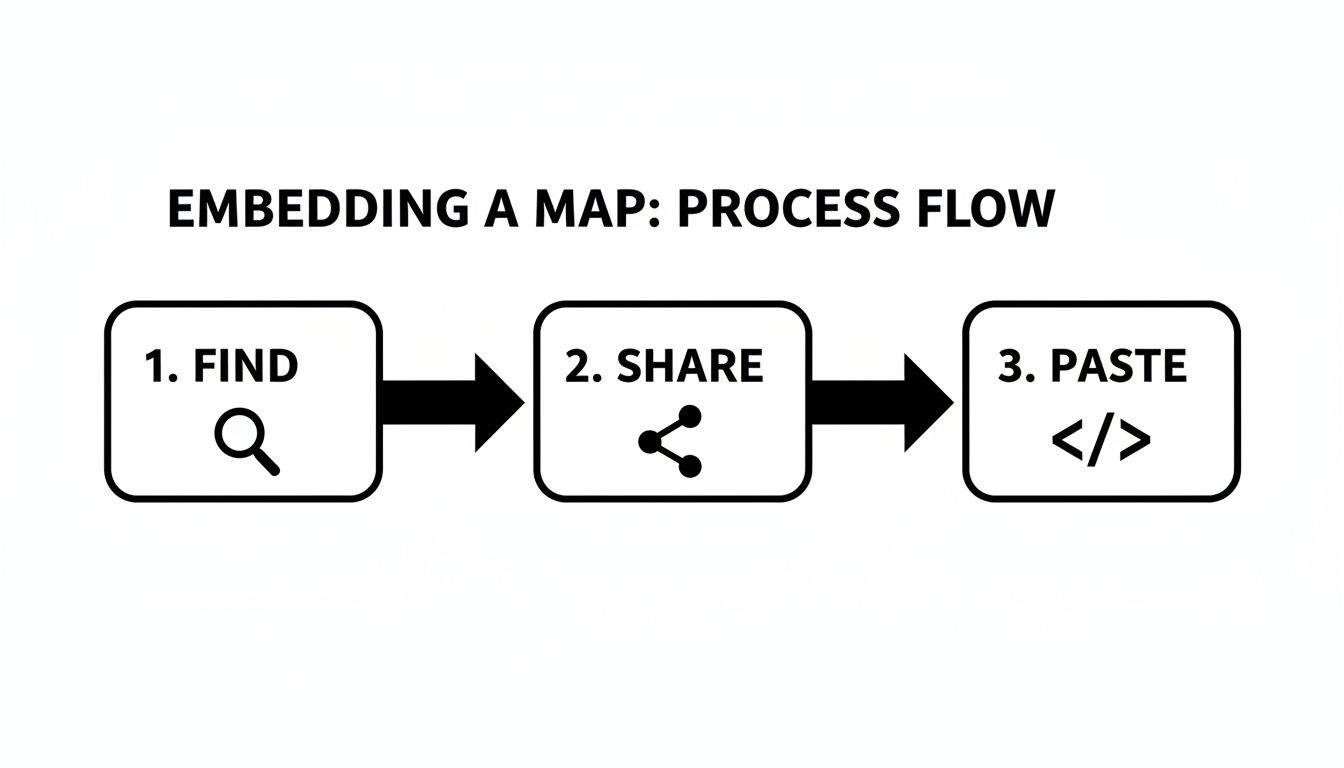
This highlights the core steps for the iframe method, but unlocking the API's custom features requires a bit more of a setup.
Getting Started With The Google Maps Platform
Stepping into the world of the API might sound a bit techy, but it’s a structured process that starts in the Google Cloud Console. Think of this as your command centre for managing all of Google’s advanced services.
Your first move is to create a Google Cloud Project. This is basically a dedicated container for your map's settings, API keys, and billing information. It keeps everything neat, tidy, and secure.
Once your project is set up, you’ll need to enable the specific APIs required for your map. For most custom web maps, this will mainly be the Maps JavaScript API. This is the key that unlocks the ability to tweak the map’s appearance and add interactive elements right on your site.
A crucial step that’s often missed is securing your API key. By default, a new key can be used anywhere, which is a massive security risk. You should always restrict your key to your website’s domain to prevent others from using it and running up your bill.
Understanding Billing and API Keys
The word "billing" often makes business owners nervous, but Google’s pricing structure is surprisingly generous for most small businesses. The Google Maps Platform gives you a substantial free monthly credit, which covers the vast majority of use cases for a typical company website.
To get this, you'll need to set up a billing account and link it to your project. This doesn’t mean you’ll be charged immediately; it’s just a requirement to verify your identity. Google will only charge you if your usage soars past the free monthly limit.
So, what cool things can you do with the API? The possibilities are pretty extensive:
Custom Markers: Ditch the standard red pin and use your company logo to mark your location. If you have multiple branches, you could even use different icons for each.
Interactive Info Windows: When someone clicks on a marker, you can show a pop-up window with rich info like opening hours, photos, or even a link to book an appointment.
Branded Map Styles: Use tools like Google's own Styling Wizard or third-party libraries to create a map that feels uniquely yours.
Monitoring your usage is straightforward inside the Google Cloud Console. You can set up budget alerts to get a notification if you’re getting close to the free tier limits, ensuring there are never any surprise costs. This control and customisation make embedding Google Maps in a website via the API a strategic choice for businesses looking to stand out.
If you’re ready to roll out a custom map but need a hand with the technical side, the team at Baslon Digital can help integrate a beautifully branded map right into your Wix website. Get in touch with us today to chat about your project.
Iframe Embed vs Google Maps API: Which Is Right For You?
Choosing between a simple iframe and the more powerful API can feel like a tough call. One is all about speed and simplicity, while the other offers total creative freedom. It really comes down to your specific needs, your comfort level with a little bit of tech, and your budget.
To help you decide, here’s a quick breakdown of what each option brings to the table.
Feature | Iframe Embed (Simple) | Google Maps Platform API (Advanced) |
|---|---|---|
Ease of Use | Extremely easy. Just copy and paste a snippet of code. | Requires setup in Google Cloud, some coding (JavaScript). |
Customisation | Very limited. You can only change the size of the map. | Highly customisable. Change colours, fonts, markers, and add interactive features. |
Cost | Completely free. | Free for most small businesses, with costs only for very high traffic. |
Interactivity | Basic panning and zooming. | Advanced interactions like custom pop-ups, directions, and data overlays. |
Best For | Businesses needing a quick, simple map on a contact page. | Businesses wanting a unique, branded map experience that engages users. |
Technical Skill | None needed. | Basic understanding of HTML and JavaScript is helpful. |
Ultimately, if you just need to show your location, the iframe is perfect. But if you want your map to be an integral, branded part of your website experience, the API is the way to go. It’s a bit more of an investment in time, but the payoff in professionalism and user engagement is huge.
Optimizing Your Embedded Map for SEO and User Experience
Okay, so you've got a map on your website. That's a decent start, but if you really want it to work for you, you need to think about both Google and the actual humans visiting your site. A well-optimised map isn't just a widget; it's a powerful signal to search engines about your local relevance and a massive plus for your customers' experience.
Simply embedding Google Maps in a website is one thing, but backing it up with the right information is what truly makes a difference. Search engines—and your customers—love consistency.
Bolstering Your Local SEO Signals
When it comes to local search, consistency is king. Seriously. Google wants to see the exact same information about your business everywhere it looks online, and that starts right on your own turf—the page with your map.
Always, always display your Name, Address, and Phone number (NAP) in plain text right next to your embedded map. This makes it ridiculously easy for people to find your details and for Google's crawlers to confirm that the map location matches your contact info. It’s a simple action that screams geographic relevance.
Want to take it up a notch? Implement LocalBusiness schema markup. This is a bit of code you add to your page that basically spoon-feeds search engines the important details about your business.
Think of schema markup as a direct translator for search engines. You're not just showing them an address; you're telling them, "Hey, Google, this is the official street address for my bakery, and by the way, we're open from 9 am to 5 pm on weekdays." This structured data helps Google understand your business on a deeper level, which can give you a nice little boost in local search results.
Enhancing User Experience and Accessibility
A great user experience (UX) means making sure everyone can use your website, and that includes your map. Accessibility isn't just about ticking a box; it's about providing a genuinely helpful experience for all potential customers.
Here are a few key things to get right:
Keyboard Navigation: Can someone who doesn't use a mouse still navigate your map? They should be able to. Make sure it's possible to pan and zoom using only keyboard commands.
Text-Based Directions: Pop a text version of your address and some simple directions just below the map. This is non-negotiable for users with screen readers and a lifesaver for anyone who just wants to copy and paste the address into their own app.
Responsive Design: Your map has to look good and work perfectly on every device, from a massive desktop monitor to the smallest smartphone screen. A map that breaks your layout or is a nightmare to use on mobile will just frustrate visitors and send them packing.
Nailing these details turns your map from a simple embed into a valuable asset for every single visitor. To really get into the weeds on this, you might want to check out our article on how to boost your business with Local SEO for small businesses.
If you're a Wix user and all this sounds like a headache you'd rather avoid, the team at Baslon Digital can sort it for you. Reach out to us, and we'll make sure your map is pulling its weight for your business.
Troubleshooting Common Map Embedding Issues
Even with the best instructions, technology has a way of throwing a spanner in the works. You’ve followed all the steps for embedding Google Maps in a website, but your map is blank, broken, or shouting some weird error message at you. Don't panic—most of these issues are surprisingly simple to fix.
Think of this section as your field guide for sorting out those frustrating little problems so you can get your map looking perfect.
Why Is My Map Not Showing Up at All?
Ah, the classic disappearing map act. You've pasted the code, hit save, and all you see is a big, empty white space where your glorious map should be. Nine times out of ten, this points straight back to the iframe code.
Dodgy Code: It is ridiculously easy to miss a single character when copying HTML. Even one missing bracket () can break the whole thing. The quickest fix? Just pop back to Google Maps, generate the code again, and very carefully copy and paste it one more time.
Wix Woes: If you're a Wix user, make sure you've pasted the code into the right spot in the HTML element's settings. Just pasting it as text onto the page won’t cut it; it has to live inside that dedicated code box.
Honestly, this simple copy-paste mistake is the number one culprit, so always check that first before you start diving into anything more complicated.
Decoding the Dreaded "This Page Can't Load Google Maps Correctly" Error
If you've ventured into the world of the Google Maps Platform API, you might have run into a sad, greyed-out map with a warning that says, "This page can't load Google Maps correctly." This error is almost always tied to your Google Cloud project settings.
It’s basically Google’s way of saying, "Hold on, something's not right with your API key or billing."
This isn't a bug; it's a security feature. The error is a clear sign your API key is being called, but Google is blocking the request for a good reason—usually to protect your account from being used without permission.
To sort this out, you’ll need to peek inside your Google Cloud Console and check a few things:
Billing Account: Is a valid billing account properly linked to your project? The API won't work without it, even if you’re well within the free usage tier.
API Permissions: Have you actually enabled the "Maps JavaScript API" for your project? Your key won't have permission to show a map if the service itself is switched off.
Key Restrictions: Did you restrict your API key to your website's domain? If so, double-check for typos. A classic mistake is forgetting to include both and to cover all the subdomains.
Finally, another sneaky problem can be a CSS conflict. Your website's own style rules might be accidentally messing with the map's container, squashing its height or width to zero. Using your browser's developer tools to "inspect" the map element can quickly show you if a rogue CSS rule is the real villain.
If these technical gremlins are still giving you a headache, the team at Baslon Digital is here to help. Contact us, and we'll get your map sorted for you.
Got Questions About Embedding Maps? We've Got Answers.
When it comes to the nitty-gritty of popping a Google Map onto your website, a few questions always crop up. Getting straight answers helps you pick the right tool for the job and dodge any nasty surprises down the line. Let's tackle the usual suspects we hear from our clients.
So, How Much is This Going to Cost Me?
This is always the first question, and for good reason! The answer, thankfully, is usually "nothing at all".
For the vast majority of local businesses, sticking a map on your contact page using the simple iframe embed method is completely free. You just grab the code from Google Maps, paste it onto your site, and you're done. It's a zero-cost, high-value feature that's a no-brainer for any website.
But what if you want something a bit fancier? If you're using the more powerful Google Maps Platform API for custom bells and whistles, there is a pricing structure, but it’s incredibly generous. Google gives you a hefty free monthly credit that's more than enough for the typical small business website. You'll need to set up a billing account to get started, but you won't actually see a charge unless your map usage goes through the roof, which is pretty rare for most sites.
Can I Make the Map Match My Brand?
Absolutely, but how you can customise it depends entirely on the method you've chosen.
With the quick-and-easy iframe method, what you see is pretty much what you get. Your customisation options are minimal; you can really only tweak its size (width and height) in the HTML code. It's functional, but not exactly a design statement.
The Google Maps API, on the other hand, is where the real fun begins. This is how you make the map truly yours.
Custom Styles: Fancy changing the colours of roads, parks, and water to match your brand's palette? Go for it.
Unique Markers: Ditch the boring red pin and use your company logo or a custom icon instead.
Interactive Goodies: Add clickable pop-up windows with your business hours, a photo, or a direct link to book an appointment.
Want to create a branded map experience without tearing your hair out? Tools like Google's own Styling Wizard are great, and third-party resources like Snazzy Maps offer fantastic pre-made themes and easy-to-use interfaces. You can design a map that looks like it was made just for your site.
Will This Thing Slow Down My Website?
It's a fair question—nobody wants a sluggish website, and site speed is a huge deal for both visitors and Google. While it's true that adding any third-party element adds a little bit to your page load, Google Maps is highly optimised. A standard embedded map has a tiny impact.
But if you're chasing every last millisecond of speed, there’s a smart trick called lazy loading. This clever technique tells the map not to load until a visitor actually scrolls down the page to where it's located. The result? It has zero effect on your initial page load time, keeping your site feeling lightning-fast while still offering full map functionality when needed.
If you're a Wix user and need a hand with any of this—from a simple map embed to a fully customised API integration—the team at Baslon Digital is here to help. Get in touch with us, and we'll make sure your map is perfectly integrated into your site.
Take Your Local Presence to the Next Level
You’ve now got all the tools you need for embedding Google Maps in a website, turning a simple page into a serious local marketing asset. Whether you go for the straightforward iframe or the more advanced API, the real magic happens when you integrate the map smoothly with your business details.
Don't just show customers where you are—guide them straight to your front door. A map is often that final little nudge that turns someone browsing online into a real-life, in-person customer.
This is especially true when you pair it with a strong Google Business Profile. Think of them as a power couple. You can learn more about getting that right in our UK guide to Google My Business.
But to really crank up your local visibility, you need to understand how to rank higher on Google Maps and pull in those local customers. An optimised map on your site is a brilliant start, but making sure you pop up in Google's own search results is what brings in new clients day after day.
By putting these techniques into practice, you're setting your business up for much better local visibility and results you can actually measure.
Ready to put your business on the map and attract more local customers? The expert team at Baslon Digital specialises in creating powerful Wix websites with seamless map integration and optimised local SEO. Reach out today to see how we can help your business thrive.
Comments