A Complete Guide to Embedding Google Maps in Website

Embedding a Google Map on your website is one of those simple little tweaks that punches way above its weight. The easiest way to get started is by grabbing an HTML iframe snippet straight from the Google Maps website and pasting it into your site's code. You don’t need to know a single line of code, and just like that, you’ve made your physical location instantly discoverable.
Why an Embedded Map Is a Must-Have for Your Website
Let's be honest, just listing your address is old news. Embedding a Google Map transforms that boring line of text into an interactive tool that builds trust and makes life easier for your visitors. They no longer have to leave your site, open a new tab, and start searching for you. Everything they need is right there, ready to go.
For any local business—a restaurant, a shop, a salon—the payoff is huge. When potential customers can see exactly where you are and get directions with a single click, you’ve just knocked down a massive barrier between them and your front door. It’s a direct line from online interest to real-world foot traffic.
Driving Engagement and Building Credibility
An embedded map does more than just point the way; it shows you’re a legitimate, established business. It screams professionalism and makes you look accessible. This is especially true for service providers working in specific areas. A map can visually lay out your service radius, so potential clients know instantly if you cover their neighbourhood.
This isn’t just guesswork; the numbers back it up. In the UK, small businesses that embed maps on their sites have seen some seriously impressive results. Research shows this simple feature can crank up user engagement by as much as 70% in location requests and give direction taps a 42% boost. It's a small change with a big impact.
A map isn't just a navigational aid; it's a critical part of your online shopfront. It bridges the gap between your digital presence and your physical location, turning browsers into actual visitors.
Enhancing Your Digital Footprint
Putting a map on your site is also a savvy move for your search engine visibility. It’s a massive signal to Google that you’re a real local business, which helps your local SEO efforts. This can seriously improve your chances of showing up in the coveted "local pack" search results—a goldmine of traffic for local businesses. To really make this work for you, it's worth learning how to boost your business with local SEO for small businesses.
Many hosts have also found that adding a map makes their essential electronic guidebook infinitely more helpful, giving guests dynamic, easy-to-use location info. It’s a tiny addition that makes a huge difference to the guest experience.
Ultimately, embedding a map is a foundational step in building a useful, professional website. In this guide, we’ll walk through the two main ways to get it done: the super-simple iframe embed and the more flexible JavaScript API.
Ready to put your business on the map? At Baslon Digital, we specialise in creating stunning Wix websites that seamlessly integrate features like Google Maps. Get in touch today, and let's build a site that gets you real results.
Choosing Your Path: Simple Iframe vs Custom API
Before you jump into the how-to of embedding Google Maps in your website, you’ve got a big decision to make. Are you going down the simple path with an iframe embed, or do you need the power and customisation of the JavaScript API? Your answer will shape the complexity, cost, and creative possibilities of your map.
Think of it like choosing a mode of transport. The iframe embed is like a trusty, ready-to-go bicycle. It’s free, a doddle to use, and gets you from A to B without any fuss. For most businesses, this is exactly what they need.
On the other hand, the Google Maps JavaScript API is like building a custom car from scratch. It takes more technical skill and might cost you, but you control every single detail—from the colour of the roads to the style of the pop-up info boxes. This is the route for anyone who needs a truly unique map experience that a standard embed just can’t deliver.
The Simple Iframe Embed: Quick and Effective
There’s a reason the iframe method is so popular. It’s the fastest way to get a live, interactive map onto your contact page or blog post. You just find your location on Google Maps, copy the pre-made HTML snippet, and paste it straight into your website editor. Done.
This approach is perfect for:
Small Businesses needing a simple map to show customers where their shop is.
Event Organisers wanting to display a venue address without any hassle.
Website Owners who don't have coding skills but still want a professional-looking map.
You don't need an API key, and there are no hidden costs. Its simplicity is its greatest asset, offering a solution that’s more than "good enough" for the vast majority of people.
The JavaScript API: Ultimate Control and Customisation
When your project needs more than just a pin on a map, the JavaScript API is your best friend. This method means using code to build your map from the ground up, giving you complete freedom over its look and feel.
With the API, you can add advanced features that an iframe can only dream of. Imagine a real estate website showing multiple property listings with custom-branded icons, or a delivery service showing live vehicle tracking on a map styled with the company's brand colours. That level of detail is only possible through a direct API integration.
The choice between an iframe and an API isn't about which is "better," but which is right for your goal. An iframe prioritises speed and simplicity, while the API prioritises power and personalisation.
This decision tree can help you visualise whether your business needs a map to guide physical foot traffic or to define a wider service area.
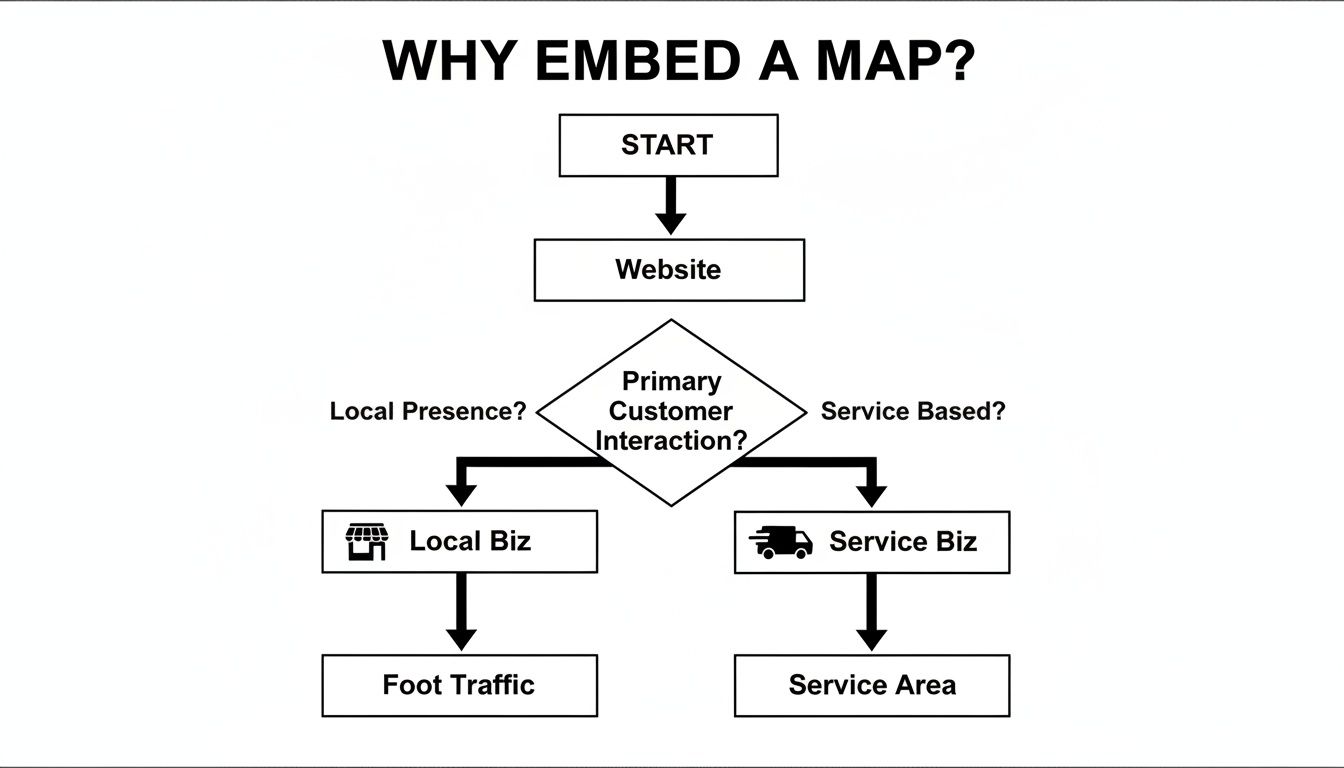
The flowchart shows that whether you're a local shop or a service-based business, a map fundamentally connects your digital presence with your physical operations.
This table gives you a side-by-side look to help you decide.
Comparing Map Embedding Methods: Iframe vs JavaScript API
Feature | Iframe (Simple Embed) | JavaScript API (Advanced) |
|---|---|---|
Ease of Use | Very easy. Copy and paste. | Requires coding knowledge (JavaScript). |
Customisation | Limited (size, zoom level). | Fully customisable (styles, markers, overlays). |
Cost | Completely free. | Free tier, then usage-based billing. |
API Key Needed | No. | Yes, requires Google Cloud Platform account. |
Interactivity | Basic map controls (pan, zoom). | Advanced (custom pop-ups, dynamic data). |
Best For | Simple location display, contact pages. | Branded experiences, complex data visualisation. |
Ultimately, the power of the API comes with a few strings attached. You'll need a Google Cloud Platform account, an API key, and a bit of JavaScript know-how. And while Google offers a generous free tier, high-traffic sites might see some billing costs. You have to weigh this complexity against the value of deep customisation.
So, deciding which route to take is your most important first step. Do you need a map on your site in the next five minutes, or are you after a unique, branded map experience that makes you stand out?
Feeling unsure which method is the best fit for your Wix website? At Baslon Digital, we can help you choose and implement the perfect map solution that aligns with your business goals. Contact us today for a free consultation.
Embedding Your First Map with the Iframe Method
If you're after the quickest, most straightforward way to get a Google Map onto your website, the iframe method is your best friend. Seriously. It’s a genuine quick win, designed to get an interactive map live on your site in under ten minutes, with absolutely zero coding required. It’s the perfect starting point if you just need to show a location without any fancy customisation.
Think of an iframe (which stands for inline frame) as a little window on your webpage that looks through to content from somewhere else—in this case, Google Maps. You're not actually building a map on your site; you're just creating a portal to an existing one. That’s what makes it so beautifully simple and completely free to use.
Generating Your Unique Map Code
The whole process kicks off right on the Google Maps website. Forget signing up for anything or messing with API keys. You just need to find your location and grab the code snippet Google happily provides.
Let’s walk through the exact steps to get your hands on that personalised map code.
Find Your Location: Pop open Google Maps and type your business address, an event venue, or any landmark into the search bar. The map will zoom in and drop a pin right on your spot.
Adjust the View: Now’s your chance to frame the map exactly how you want it to appear on your site. Use the zoom controls (+ and -) to get closer or pull back. You can also click and drag the map around to get the pin perfectly centred.
Open the Sharing Options: Once you're happy with the view, look for the "Share" button and give it a click. A pop-up window will appear with a couple of options.
Select 'Embed a map': In that pop-up, you'll spot two tabs: "Send a link" and "Embed a map." You want to click on the "Embed a map" tab, which will reveal the iframe code.
Copy the HTML: You’ll see a snippet of HTML code that starts with `
`
That one simple addition can make a huge difference. If you're hunting for more ways to speed things up, our complete guide explains how to improve website loading speed fast.
Ensuring Your Map Is Accessible to All Users
Web accessibility isn't just a box-ticking exercise; it's about making sure your website can be used by everyone, including people with disabilities who might use screen readers or other assistive tech. An inaccessible map is a barrier that excludes a chunk of your audience.
Here are a few key practices to make your embedded map more accessible:
Provide a Title Attribute: Add a descriptive attribute to your iframe. A screen reader will announce this title, giving context to users who can't see the map. For instance: .
Include an Alternative: Always provide the address and a link to directions in plain text right next to the map. This makes sure the critical information is available to everyone, even if they can't interact with the map itself.
Use ARIA Attributes: For more complex, custom maps built with the JavaScript API, using Accessible Rich Internet Applications (ARIA) attributes becomes even more crucial. Attributes like and help define the map's purpose for assistive technologies.
By focusing on these three areas—responsiveness, performance, and accessibility—you can elevate your embedded map from a simple widget to a genuinely useful and professional feature of your website.
Struggling to get your map optimised perfectly on your Wix site? At Baslon Digital, we build websites with user experience at their core. Contact us today, and let's ensure every element of your site is fast, fluid, and user-friendly.
Your Top Google Maps Questions, Answered
Even the best guides can leave you with a few head-scratchers once you're in the thick of a project. Getting a map on your site is usually a piece of cake, but a few common hurdles can trip anyone up. This is where we tackle those nagging questions head-on, giving you clear, simple answers to get you unstuck.
Think of this as your go-to cheat sheet for the most common issues you'll face when embedding a Google Map on your website. From pesky API errors to making it match your brand, we've got you covered.
Is It Actually Free to Embed a Google Map?
This is the big one, and the short answer is: it depends on which route you take.
For most people, the answer is a big, resounding yes. If you're just using the simple iframe embed method—literally copying and pasting the HTML from Google Maps—it's completely free. No usage limits, no hidden fees. It’s the perfect choice for most small businesses that just need to show customers where they are.
Things change a bit if you go for the more advanced JavaScript API to create custom maps. Google gives you a very generous free monthly credit (currently $200), which is more than enough for sites with low-to-moderate traffic. You'll only start seeing charges if your map usage goes beyond that free tier.
How Do I Pin Multiple Locations on One Map?
Showing all your shop branches or a tour's points of interest on a single map is a brilliant way to give users the full picture.
Unfortunately, the simple iframe embed method can't do this. It’s built to show just one location at a time, plain and simple.
To drop multiple pins on a single map, you’ll need to roll up your sleeves and use the Google Maps JavaScript API. This method gives you the power to add an entire array of locations, each with its own coordinates and custom marker. It's how you create those rich, interactive maps that really impress visitors.
Help! I’m Getting an API Key Error. What Now?
Seeing that dreaded "This page can't load Google Maps correctly" message is frustrating, but don't panic. It's almost always a problem with how your API key is set up.
Here’s a quick troubleshooting checklist to run through:
Is Billing On? You need to have a billing account enabled in your Google Cloud Platform project. Even if you never leave the free tier, Google still requires it for the API to work.
Did You Enable the Right API? Pop back into your project's library and double-check that you've enabled the "Maps JavaScript API". It's an easy one to miss.
Check Your Restrictions. This is the number one culprit. Make sure your HTTP referrer restrictions include your exact website domain. A common slip-up is a typo or forgetting the wildcard at the end (e.g., ).
Can I Change How My Embedded Map Looks?
Absolutely! A map that matches your brand’s colour scheme looks so much more professional and polished.
With the basic iframe embed, your styling options are next to none. You can pretty much only change the map's size and how zoomed in it is.
For real creative control, the JavaScript API is your best friend. It lets you change everything—from the colour of the water and roads to whether local landmarks show up. Tools like Google's own Map Style Editor make this surprisingly easy, giving you a custom JSON style file you can apply with just one line of code.
A custom-styled map does more than just look good; it reinforces your brand identity and creates a seamless visual experience for the user, making your website feel more cohesive and professionally designed.
With these common questions cleared up, you should be ready to tackle any little bumps in the road. You've now got all the know-how needed to add a powerful, interactive, and beautifully integrated map to your site.
Ready to elevate your online presence with a stunning, high-performance website? At Baslon Digital, we specialise in creating custom Wix sites that not only look incredible but also drive real business results. Let us handle the technical details, so you can focus on what you do best. Visit us at https://www.baslondigital.com to see how we can transform your vision into reality, or Contact us today for a free consultation.
Comments