
Wix SEO Checklist How to Improve Your Site with Keywords Meta Tags Images Speed and Links
If you have ever searched “Help me improve my Wix SEO,” this checklist is built for that exact moment. It walks through the core tasks that help a Wix website show up for the right searches, attract better visitors, and give people a smoother experience once they arrive.

A Wix site can look polished and still stay buried in search results. The difference often comes down to small, fixable details: the words on each page, how images are prepared, whether the mobile version works well, and how clearly search engines can understand the site.
If you have ever searched “Help me improve my Wix SEO,” this checklist is built for that exact moment. It walks through the core tasks that help a Wix website show up for the right searches, attract better visitors, and give people a smoother experience once they arrive.
Use it as a working list. Open your Wix dashboard, review one section at a time, and make improvements as you go.
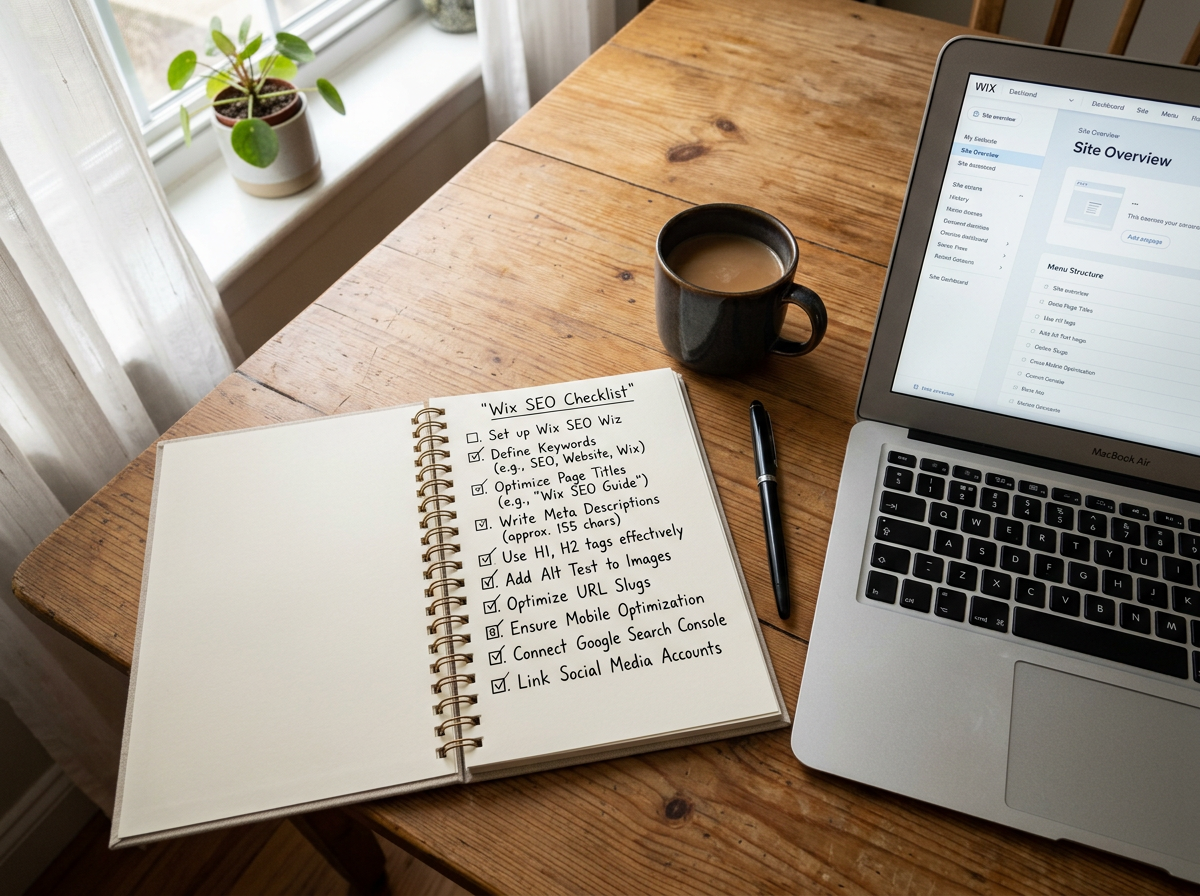
Start with the Wix SEO basics before changing everything
Before editing titles, images, and links, make sure the site has a strong foundation. Wix gives you built-in tools that cover many technical SEO basics, but they still need setup and review.
Complete the Wix SEO Setup Checklist
In the Wix dashboard, use the built-in SEO Setup Checklist. It helps connect the site to Google, set basic site information, and create starter recommendations.
Check these items first:
- Confirm your site is published.
- Add a clear site name.
- Set your business or website type correctly.
- Connect your site to Google Search Console, if available in your Wix plan and dashboard.
- Submit your sitemap through the tools Wix provides or through Google Search Console.
- Make sure search engines can index your pages.
To check index settings, open the SEO settings for key pages and confirm they are not set to `noindex` unless you intentionally want them hidden from search.
Use clean page URLs
A clean URL helps both visitors and search engines understand the page.
Good examples:
- `/services`
- `/wedding-photography`
- `/handmade-soy-candles`
Weak examples:
- `/page-1`
- `/new-page`
- `/services-copy`
In Wix, edit the URL slug in each page’s SEO settings. Keep it short, readable, and related to the page topic. If you change a URL on a live site, set up a 301 redirect so old links still work.
Research keywords people actually search for
Keyword research does not mean stuffing repeated phrases into every page. It means learning how people describe their problem, then using those words in helpful, natural places.
Build a keyword list for each main page
Every important page should have one main topic. A homepage might target a broad phrase. A service page should target a more specific phrase. A blog post can answer a detailed question.
Create a simple list like this:
| Page | Main keyword idea | Related phrases |
|---|---|---|
| Homepage | handmade candles | soy candles, natural candles, candles made in the USA |
| Service page | family photographer | family portraits, outdoor family photos |
| Blog post | how to care for soy candles | candle care tips, make candles last longer |
Use keyword tools if you have them, but do not ignore common sense. Google autocomplete, customer questions, competitor page titles, and your own site search terms can all reveal useful phrases.
Match keywords to search intent
A keyword is only useful if the page answers the reason behind the search.
Search intent usually falls into four groups:
- Informational The person wants to learn something. Example: “how to choose a wedding photographer”
- Commercial The person is comparing options. Example: “best wedding photographer packages”
- Local or service-based The person wants help in a specific area. Example: “wedding photographer near me”
- Transactional The person is ready to act. Example: “book wedding photographer”
For Wix pages, match the page format to the intent. A blog post works well for informational searches. A service page works better for booking or quote-related searches.
Place keywords where they matter
Once you choose the main keyword for a page, place it naturally in:
- The page title tag
- The H1 heading
- The opening paragraph
- One or two H2 headings, if it fits
- Image alt text, when the image supports the topic
- The URL slug
- Internal link anchor text
Do not repeat the same phrase in every sentence. Search engines are better at understanding related language than they used to be. Write clearly and cover the topic well.
Improve meta tags and page descriptions
Meta tags help search engines understand a page. They can also affect whether someone clicks your result in search.
In Wix, you can edit SEO titles and meta descriptions from each page’s SEO settings.
Write a clear title tag for every important page
The title tag is one of the most important on-page SEO elements. It often appears as the clickable title in search results.
A strong title tag should:
- Describe the page accurately
- Include the main keyword near the beginning when natural
- Stay concise enough to avoid being cut off too badly
- Mention the site or business name when useful
Examples:
- `Family Photography in Austin | Bright Oak Studio`
- `Handmade Soy Candles Made in the USA | North Wick`
- `Custom Website Design for Small Businesses | Pine Street Creative`
Avoid vague titles like:
- `Home`
- `Services`
- `Welcome to My Website`
- `Untitled Page`
Each page needs a unique title. Duplicate titles make it harder for search engines to know which page to show.
Write meta descriptions that earn the click
A meta description does not directly guarantee rankings, but it can help people choose your page in search results.
A good meta description should:
- Summarize the page in plain language
- Include the main topic or keyword
- Give a reason to click
- Match what the page actually offers
Example:
`Book relaxed family photography sessions with natural light, flexible locations, and simple packages. View pricing and see recent portrait galleries.`
Keep it specific. A description like “We offer high-quality services for all your needs” tells people almost nothing.
Use one clear H1 per page
The H1 is the main visible heading on the page. In many Wix templates, the largest page heading acts as the H1, but it is still worth checking.
Each page should have:
- One main H1
- A clear topic
- Supporting H2 and H3 headings below it
For a candle shop, instead of an H1 like `Welcome`, use something like `Handmade Soy Candles for a Warmer Home`.
Make images lighter, clearer, and easier to understand
Images can help a Wix site feel trustworthy and polished. They can also slow it down if they are too large or poorly named.
Rename image files before uploading
Before adding images to Wix, rename the files with clear, descriptive words.
Good file names:
- `blue-ceramic-coffee-mug.jpg`
- `outdoor-family-photo-session.jpg`
- `hand-poured-soy-candle.jpg`
Weak file names:
- `IMG_4928.jpg`
- `DSC0017.png`
- `screenshot-final-final.png`
Use hyphens between words. Keep names short and relevant.
Add helpful alt text
Alt text describes an image for screen readers and gives search engines more context. It should explain the image, not stuff keywords.
Good alt text:
`Hand-poured soy candle in a glass jar on a linen tablecloth.`
Weak alt text:
`Candle candle soy candle best candle buy candle online.`
In Wix, select the image and look for the alt text or accessibility field. Add a short, accurate description for important images. Decorative images do not need keyword-heavy descriptions.
Compress images before publishing
Large image files can slow down your site. Wix may process images, but you should still upload files that are reasonably sized.
Practical image tips:
- Use JPG for most photos.
- Use PNG only when transparency or sharp graphic detail is needed.
- Avoid uploading huge camera files straight from a phone or DSLR.
- Resize images close to the display size needed on the page.
- Compress files before upload using a trusted image compression tool.
For full-width hero images, you may need a larger file. For small thumbnails, keep them much smaller. The goal is simple: clear images that load quickly.
Make the mobile version easy to use
Many visitors will see your Wix site on a phone first. Google also uses mobile-first indexing, so the mobile version of your site matters for SEO.
Wix includes a mobile editor, but you should not assume the mobile layout is perfect after building the desktop version.
Review every important page on a phone
Open your site on a real phone and check:
- Is the text easy to read without pinching?
- Are buttons large enough to tap?
- Does the menu open smoothly?
- Are forms short and simple?
- Do images crop in a strange way?
- Is the main call to action visible near the top?
- Are sections stacked in a logical order?
Do not rely only on the editor preview. Real devices catch issues previews can miss.
Keep mobile pages focused
Mobile visitors scan quickly. Long blocks of text, oversized images, and crowded sections make the page harder to use.
Improve mobile pages by:
- Breaking text into short paragraphs
- Moving key information higher on the page
- Hiding decorative sections that add clutter
- Using clear buttons like `Book a Consultation` or `View Pricing`
- Keeping forms to the fewest fields needed
A clean mobile page helps visitors act faster, which can support better engagement signals over time.
Speed up your Wix site without rebuilding it
Site speed affects user experience. Slow pages can cause visitors to leave before they read, contact, or buy.
Wix handles many technical speed tasks in the background, but site owners still control several big factors.
Remove what the page does not need
Start with the homepage and top landing pages. Look for anything that adds weight without helping the visitor.
Common speed drains include:
- Too many large photos
- Auto-playing video backgrounds
- Heavy animation effects
- Extra apps that are no longer used
- Embedded widgets from outside tools
- Long pages with repeated sections
Remove or simplify anything that does not support the page goal.
Be careful with apps and third-party scripts
Wix apps can add useful features, but each one may add code. The same goes for chat tools, booking widgets, review feeds, tracking scripts, and pop-ups.
Review installed apps and scripts. Ask:
- Do we still use this?
- Does it help visitors take action?
- Does it appear on every page when it only needs one?
- Can Wix’s built-in feature replace it?
Keep the tools that serve a clear purpose. Remove the ones that only add clutter.
Test pages after major changes
Use Wix’s built-in tools and common speed testing tools to check key pages. Do not obsess over a perfect score. Focus on the problems that affect real users, such as slow image loading, layout shifts, or a long wait before the page becomes usable.
After each major edit, publish and test again. Speed work is easier when you change one group of items at a time.
Build internal links that guide people and search engines
Internal links connect one page on your site to another. They help visitors find useful content and help search engines understand page relationships.
Link from strong pages to important pages
Your homepage, main service pages, and popular blog posts can pass attention to deeper pages.
Useful internal link examples:
- A homepage section linking to your main services
- A service page linking to related case studies or FAQs
- A blog post linking to a relevant product or booking page
- A pricing page linking to a contact form
- An about page linking to your best work or services
Use descriptive anchor text. Instead of `click here`, write `view family photography packages` or `read the candle care guide`.
Create topic clusters
A topic cluster is a group of related pages that link to each other. This structure helps your site cover a subject in depth.
For example, a Wix site for a home organizer might have:
- Main service page about home organizing
- Blog post about decluttering a kitchen
- Blog post about organizing a closet
- Blog post about preparing for a move
- FAQ page about pricing and process
Each supporting post should link back to the main service page when relevant. The main service page can also link to the helpful guides.
Use external links with care
External links point from your site to another website. They can support trust when they help the reader verify information or access useful resources.
Link to credible sources
Good external links might include:
- Manufacturer care instructions
- Government or educational resources
- Industry associations
- Helpful tools
- Source material for claims
For example, a tax professional might link to an IRS page. A skincare brand might link to ingredient safety resources. A photographer might link to a venue’s official information page.
Open external links in a new tab if it improves the user experience, but do not overdo it. The main goal is to help the reader, not send them away for no reason.
Earn links from other websites
Backlinks, which are links from other sites to yours, can help build authority. The best backlinks usually come from real relationships, useful content, and trusted directories.
Ways to earn better links:
- Get listed in relevant local or professional directories.
- Ask partners or vendors to link to your site when appropriate.
- Publish genuinely helpful guides people may reference.
- Sponsor or support community pages that list supporters.
- Share original resources, templates, or examples worth citing.
Avoid buying spammy links or joining link schemes. Low-quality backlinks can create more problems than they solve.
Review this Wix SEO checklist page by page
Use this condensed checklist when reviewing each major Wix page.
| SEO item | What to check | Quick action |
|---|---|---|
| Keyword focus | Each page has one clear main topic | Assign one main keyword idea per page |
| Title tag | The SEO title is unique and specific | Edit it in the page SEO settings |
| Meta description | The description explains why someone should click | Write a short, useful summary |
| H1 heading | The page has one clear main heading | Replace vague headings like `Welcome` |
| URL slug | The URL is short and readable | Use words that describe the page |
| Image file names | Images have descriptive names | Rename files before uploading |
| Alt text | Important images have accurate descriptions | Add clear alt text in Wix |
| Mobile layout | The page works well on phones | Test on a real device |
| Speed | The page loads without unnecessary clutter | Compress images and remove unused apps |
| Internal links | Related pages connect naturally | Add descriptive links between pages |
| External links | Outside links are useful and credible | Link only where it helps the reader |
| Index settings | Search engines can access the page | Check for accidental `noindex` settings |
Track progress and keep improving
SEO is not a one-time task. After making updates, give search engines time to crawl and reassess your pages. Then review what is working.
Check these regularly:
- Which pages get search traffic
- Which keywords bring impressions
- Which pages have low clicks
- Which pages load slowly
- Which pages have outdated content
- Which pages need stronger internal links
Update important pages when services change, products sell out, images become dated, or better examples are available. A Wix site with clear pages, useful content, fast loading, and strong links has a much better chance of earning steady search traffic.
The best next step is simple: choose your five most important pages and run them through the checklist. Fix the basics first. Then build from there, one useful improvement at a time.
Need help improving your Wix website’s search visibility? We help established service businesses identify what needs changing, improve their pages and make it easier for visitors to enquire. Explore our Wix SEO services.
1 view