A Practical Guide to Image SEO Optimisation on Wix

Updated: Feb 14
Let's be honest, getting found on Google can feel like you're shouting into the void. You pour hours into your content and design, but your site's visibility just doesn't budge. A huge piece of this puzzle is often hiding in plain sight: your images.
Proper image SEO optimisation isn't just a minor tweak anymore; it's a massive part of a winning digital strategy.
The way people find businesses is changing. Visual search is exploding, with tools like Google Lens letting users search with their cameras. If your images aren't optimised, you're completely invisible in this massive, growing arena.
Beyond Just Looking Good
Think of your website's images as your hardest-working employees. Their job isn't just to look pretty; they have specific tasks that can make or break your site's success.
Keeping Visitors Happy: High-quality, fast-loading images keep people engaged. Slow images? They're one of the main reasons people click away in frustration.
Climbing the Search Rankings: Google loves websites that give users a great experience. Faster page load times, which you get from compressing images, are a known ranking factor.
Driving the Right Kind of Traffic: Your images can actually rank in Google Images search, opening up a brand-new way for customers to find you. A perfectly optimised product photo can lead a user straight to your checkout page.
Making Your Site Accessible: Good alt text lets screen readers describe images to visually impaired users, which makes your site more inclusive for everyone.
From our own experience helping small businesses on Wix, a focused effort on image SEO can boost organic traffic by as much as 20% in just a few months. It’s often the highest-impact, lowest-effort change you can make.
Of course, image SEO works best when paired with a solid content strategy. Knowing how to write effective SEO articles that consistently rank is just as important. This guide will give you the practical advice you need to turn your visuals into powerful SEO assets, starting right now.
Your Pre-Upload Image Optimisation Checklist
Getting your image SEO right starts long before you even think about dragging a file into your Wix Media Manager. Seriously. If you get these basics sorted out first, your images are already primed to help your site rank higher and load faster. Think of it as your essential pre-flight check.
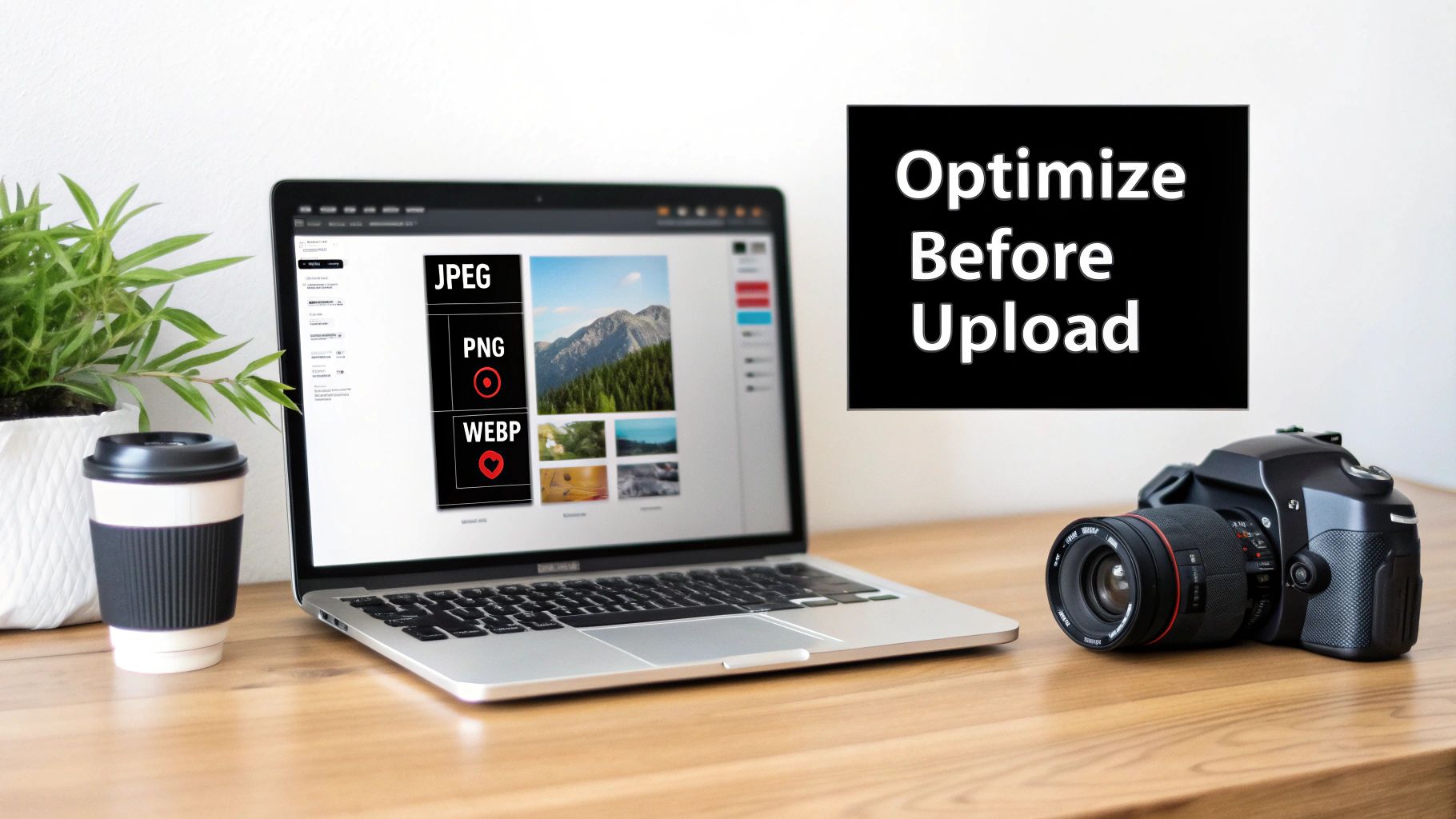
Skipping this prep work is a bit like building a house on a shaky foundation—it might look okay initially, but it won't be strong or perform well in the long run. Let's get into the three pillars of pre-upload optimisation that you can't afford to ignore.
Give Your Files a Proper Name
Let’s be honest, search engines can't "see" your image, but they absolutely read its file name. This is your first, and probably easiest, chance to tell Google what your image is all about. Those generic names like or ? They’re completely useless for SEO.
Instead, get into the habit of creating descriptive, keyword-rich file names. Always use hyphens to separate words—it's the standard that search engines like Google read most easily.
Don't do this:
Do this instead:
With that simple change, a meaningless file becomes a genuine SEO asset, giving search crawlers immediate context. For any business that relies on visual appeal, this is non-negotiable. And to make sure your photos are top-notch from the start, check out these actionable real estate photography tips.
Pick the Right Image Format
The file format you choose directly affects both image quality and file size, which then impacts how fast your website loads. There’s no single "best" format; the right choice really depends on what the image is for. Getting this right is a cornerstone of any decent image optimisation strategy.
Here’s a quick guide to help you choose the right image format.
Choosing the Right Image Format
This table is a quick comparison to help you decide which image file type is best for your specific needs on your website.
Format | Best For | Key Feature | Wix Tip |
|---|---|---|---|
JPEG | Photographs and complex images with lots of colours. | Offers excellent compression, striking a balance between quality and small file size. | This is your go-to format for most product photos, blog post images, and gallery pictures on your site. |
PNG | Logos, icons, and any image needing a transparent background. | Supports transparency and lossless compression, so no quality is lost. | Perfect for your company logo or any graphic that needs to sit cleanly over a coloured background. |
WebP | A modern all-rounder for both photos and graphics. | Provides superior compression (about 30% smaller than JPEG) while keeping the quality high. | Wix automatically converts many images to WebP to serve them faster, but uploading in this format gives you more control. |
Picking the right format from the get-go prevents nasty quality issues and helps keep your page speed snappy—a huge factor for both your visitors and your Google rankings.
Compress Images Without Making Them Look Awful
Large image files are the number one killer of website speed. Compression is just the process of making an image's file size smaller, and it's absolutely vital. The goal is to hit that sweet spot: the smallest possible file size with no obvious drop in visual quality.
We often see clients shave several seconds off their page load times just by properly compressing their images before uploading. This one step can have a bigger impact on user experience than many other complicated technical fixes.
There are loads of free and brilliant online tools like TinyPNG or Squoosh that handle this for you. They use clever compression to shrink file sizes down while keeping everything looking crisp and clear. For those who want to dive deeper into creating visuals that pop, our guide on e-commerce photography that sells offers some great insights.
By naming, formatting, and compressing your images before they ever touch your website, you're setting yourself up for SEO success. This groundwork makes every other step of your image SEO optimisation so much more effective.
Mastering On-Page Optimisation in the Wix Editor
Alright, you’ve named, formatted, and compressed your images. That’s half the battle won right there. Now it’s time to bring that groundwork home by nailing the on-page elements directly inside the Wix editor. This is where you connect your visuals to your wider SEO strategy, turning simple pictures into assets that actively help you rank.
Honestly, you can't afford to skip this part. In the crowded UK market, smart image SEO optimisation is how small businesses and freelancers get a leg up. A recent LOCALiQ UK report found a massive 64% of UK marketing professionals rely on on-page SEO—things like meta tags, internal links, and yes, image optimisation—as a core part of their game plan. It’s not just a nice-to-have; it's essential.
Crafting Alt Text That Actually Works
If you only do one thing from this entire guide, make it this: write excellent alt text for every single image. Seriously. Alt text (alternative text) is the most important on-page factor for image SEO, hands down. It’s a short, written description of an image that does two critical jobs.
First, it makes your site accessible to visually impaired users who rely on screen readers. The reader speaks the alt text aloud, describing the image. Second, it gives search engine crawlers the context they need to figure out what your image is about, which is crucial for ranking in Google Images.
Thankfully, Wix makes this bit easy. When you select an image in the editor, a settings panel pops up with a field labelled "What's in the image? (alt text)". That’s your spot.
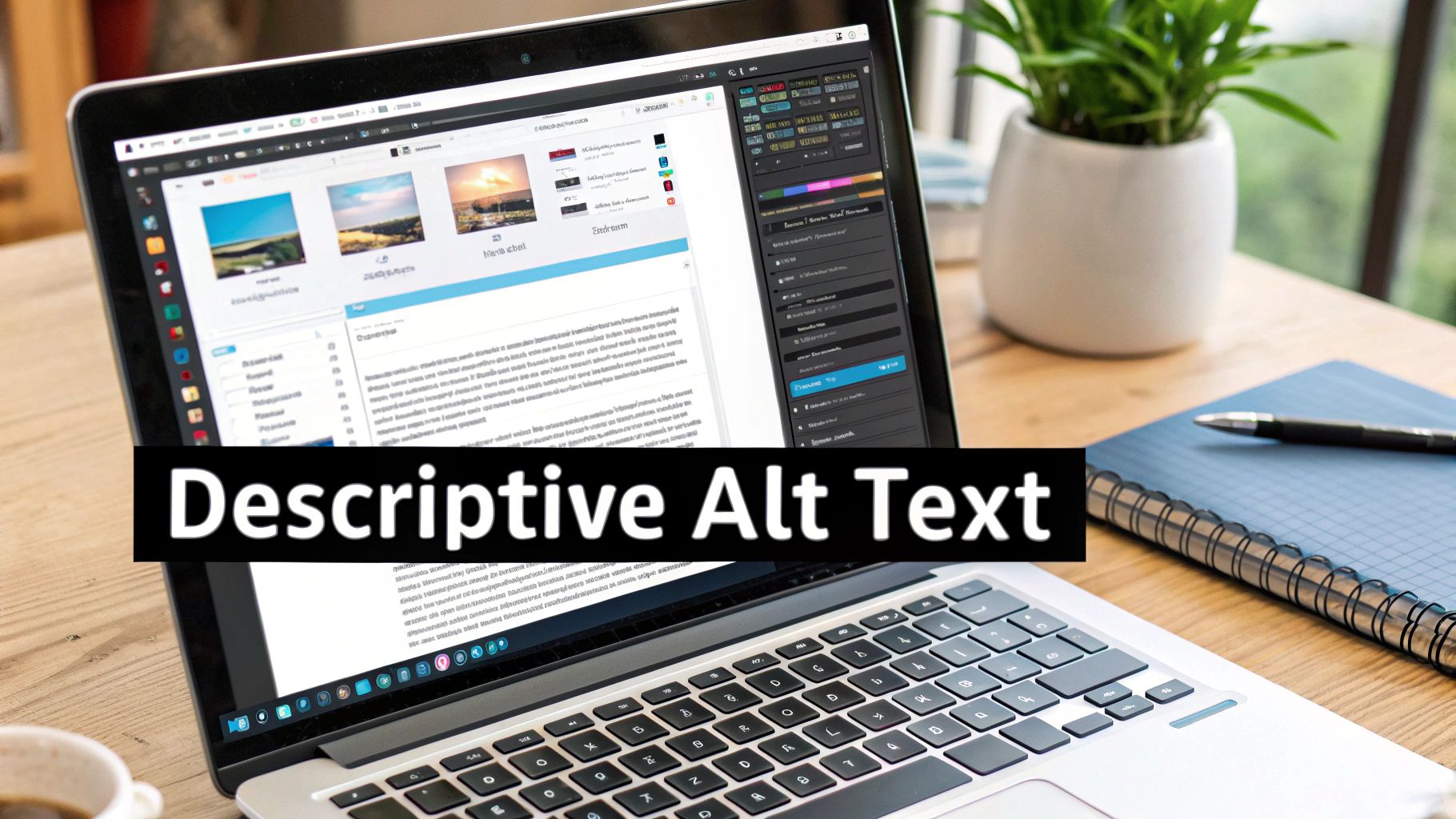
The trick is to write natural-sounding sentences that accurately describe what's in the picture. If you can slide your target keyword in without it feeling forced, even better.
Let's break it down:
Bad Alt Text:
Good Alt Text:
Keyword-Optimised Alt Text:
See the difference? The last one is descriptive, genuinely helpful, and includes a keyword () without sounding like a robot wrote it. That's the gold standard.
Pro Tip: Never start your alt text with "Image of..." or "Picture of...". Google and screen readers already know it's an image. Just get straight to the description.
Understanding Image Titles and Captions
While alt text is your SEO workhorse, image titles and captions are your user experience champions. People often mix them up, but they have distinct roles.
An image title is the text that might pop up when someone hovers their mouse over a picture. It’s not a big deal for SEO, but it can offer a little extra info. A caption, on the other hand, is the text you see right under an image on the page, giving immediate context.
Here's how to use them effectively in Wix:
Element | Primary Purpose | Best Practice |
|---|---|---|
Alt Text | SEO & Accessibility. Describes the image for search engines and screen readers. | Be descriptive and include keywords naturally. Keep it under 125 characters. |
Title | User Experience. Provides extra, non-essential info on hover. | Can be a shorter version of your alt text or a simple call-to-action like "Click to zoom". |
Caption | Context & Engagement. Gives on-page context, photo credits, or extra details. | Use it to tell a story or highlight a key feature visible in the photo. |
Captions are especially powerful for blog posts or product pages. A well-written caption can grab a reader’s attention, point out a specific detail, or provide a compelling tidbit that keeps them reading or encourages them to buy. For a deeper look at optimising your whole site, have a read of our guide on effective strategies for Wix SEO success.
By thoughtfully applying alt text, titles, and captions every single time you upload an image, you're building a richer, more accessible, and search-engine-friendly website. It's this consistent workflow that separates the amateur sites from the professional ones that get real results.
Boosting Performance with Responsive Images and Lazy Loading
A stunning website with beautiful photos is fantastic, but it's all for nothing if the page takes an age to load, especially on a mobile phone. Slow websites are a primary reason visitors leave, and performance is a huge part of modern image seo optimisation. This is where we get into the more technical side, but don't worry—it’s much simpler than it sounds, and thankfully, Wix handles most of the heavy lifting for you.
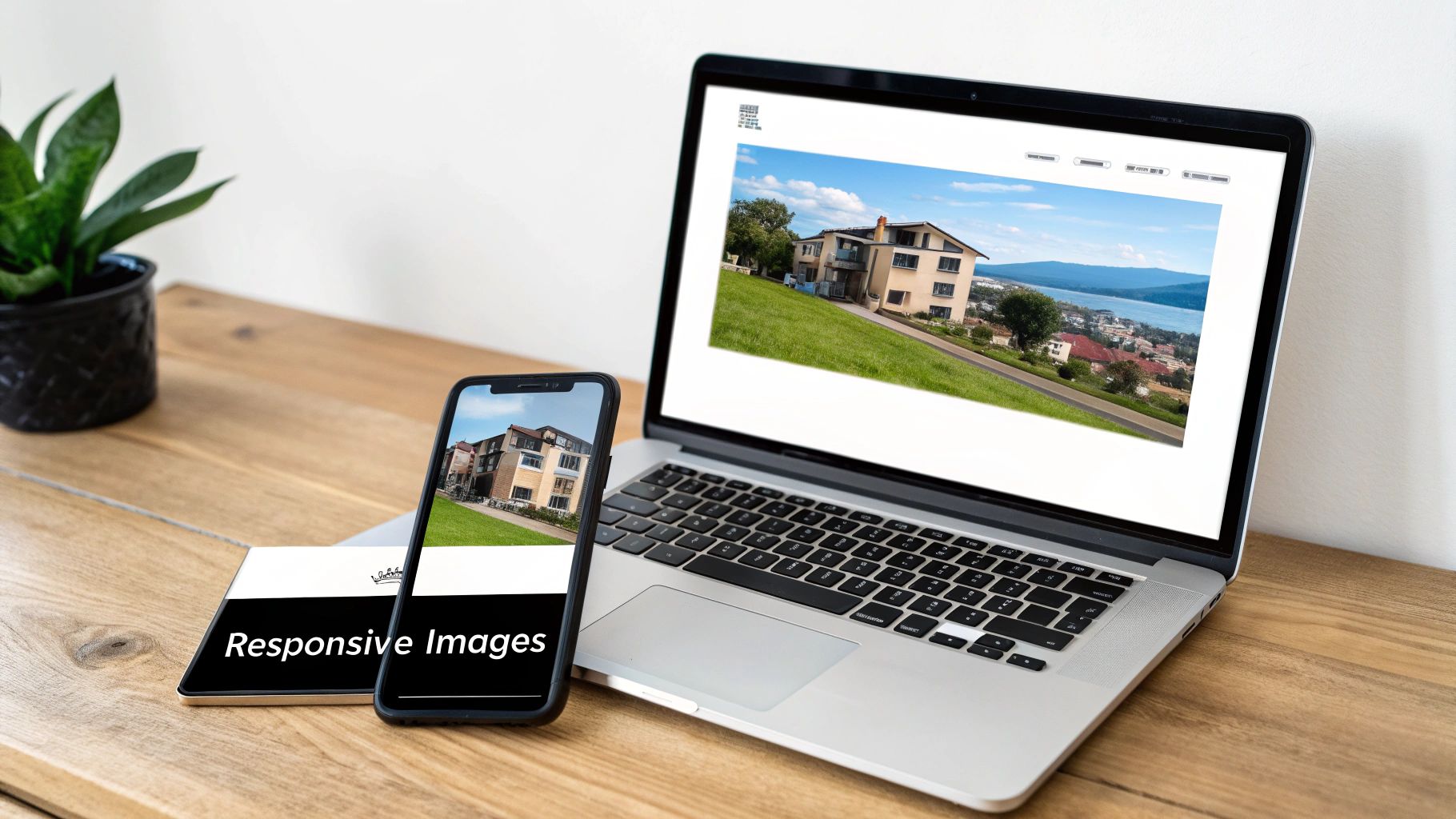
Let's break down two powerful, built-in features that make your site faster and give your Google rankings a serious nudge in the right direction: responsive images and lazy loading.
How Responsive Images Work Their Magic
Have you ever tried to view a website on your phone, only to find the desktop-sized images are slow and clunky? That’s what responsive images are designed to prevent. This clever tech automatically detects the screen size of the visitor's device—be it a huge desktop monitor, a tablet, or a smartphone—and serves up an appropriately sized version of the image.
This means a visitor on a mobile phone isn't forced to download a massive, high-resolution photo that was meant for a 27-inch screen. Instead, they get a smaller, lighter version that looks perfect on their device and loads in a fraction of the time.
The best part? If you're using Wix, this is happening automatically behind the scenes. Wix’s built-in functionality takes care of resizing and serving the optimal image for every single visitor. This directly impacts your Core Web Vitals, the set of metrics Google uses to measure user experience, which is a huge factor in your site's overall SEO performance. A good mobile experience is non-negotiable, and you can explore more strategies in our guide on how to make your website mobile-friendly.
The Power of Lazy Loading
Now let’s talk about another performance-boosting trick called lazy loading. Imagine you have a long portfolio page showcasing dozens of your best projects, or an e-commerce store with hundreds of product photos. If your website tried to load every single one of those images the moment someone landed on the page, the initial load time would be incredibly slow.
Lazy loading solves this problem elegantly. Instead of loading all images at once, it only loads the images that are immediately visible in the user's viewport (the part of the screen they can see). As the user scrolls down the page, the next set of images loads just before they come into view.
This technique provides a massive speed boost, especially for image-heavy pages. It improves the user's initial experience by showing them the content at the top of the page almost instantly, rather than making them wait for everything below the fold to load first.
Think about it from a practical standpoint:
For a photographer: Your homepage gallery loads instantly, and as a potential client scrolls through your work, new images appear seamlessly.
For an e-commerce store: A category page with 100 products doesn't overwhelm the user's connection. The first few rows of products are there right away, encouraging them to start browsing.
Like responsive images, lazy loading is another feature that Wix automatically implements across your site. You don't need to configure anything or install a special app; it's already working to make your website faster and more efficient.
These performance-focused aspects of image seo optimisation are crucial. By ensuring your images are delivered quickly and efficiently to every user on every device, you're not just improving your SEO—you're creating a better, smoother, and more professional experience for every person who visits your website.
Giving Your Images a Voice: Advanced SEO Strategies
So, you've nailed the basics. Your image files have sensible names, they're compressed to perfection, and your alt text is on point. Now it's time to get a bit more technical and give your site a real edge over the competition.
These next steps are about moving beyond simple tweaks and starting to have a more sophisticated conversation with search engines. You're not just hoping they'll understand your visuals; you're going to tell them, loud and clear, what your images are and why they're important.
Win Those Clicks with Structured Data
Ever searched for a recipe and seen a result with a little thumbnail, cooking time, and star rating right there on the Google page? Or maybe you’ve seen product listings with prices and reviews? Those fancy little extras are called rich snippets, and they're powered by something called structured data (or schema markup).
Think of structured data as a secret language you use to give Google more context. It's a bit of code you add to your site that says, "Hey, this isn't just a random picture; it's a picture of this specific thing." For image SEO optimisation, this is gold.
For an e-commerce site, you could use Product schema to link a photo directly to its name, price, and customer ratings. Suddenly, your image has a much better shot at appearing in one of those eye-catching rich snippets, which can make a huge difference to your click-through rates.
The great news is that Wix handles a lot of this for you out of the box, especially on product and booking pages. But you can also add custom structured data for other content, like:
Recipes: Tag your food photos with details like ingredients and cooking times.
Articles: Connect your main image to the author and publication date.
Events: Link that cool event poster to the date, time, and venue.
This extra layer of information helps Google feature your images in more interesting ways, pulling in traffic from people who are ready to engage.
Don't Forget Your Image Sitemap
A standard sitemap is like a map of all the pages on your website for Google. An image sitemap, as you can probably guess, is a dedicated catalogue just for your visual content. It makes sure Google doesn't miss a single image.
This is especially critical if your site uses a lot of JavaScript to load images, like in fancy galleries or product showcases. Sometimes, Google's crawlers can struggle to "see" images loaded that way. An image sitemap basically taps Google on the shoulder and says, "Psst, don't forget about all these important pictures over here!"
An image sitemap gives Google the URL of every image and can even include extra info like a title or caption. It’s your best bet for making sure every single visual asset on your site gets seen and indexed.
Wondering if your Wix site has one? Good news! Wix automatically creates and updates a sitemap for your website, and yes, it includes all your images. You can usually find it by typing after your main domain name. When you look at the file, you'll see references to your images, confirming Google has a clear path to find them. It's a massive perk that saves you a ton of manual work.
By getting comfortable with structured data and knowing your image sitemap is working for you, you’re giving your website powerful tools to compete in visual search. It’s how you make sure your images aren't just seen, but truly understood by search engines.
Putting It All Together: Your Image SEO Workflow
Alright, we've covered a lot of ground. Now, let's condense everything into a repeatable process so your image SEO optimisation becomes second nature, not another tedious chore on your to-do list.
A consistent workflow is what turns theory into tangible results. It's the secret to making sure every single visual asset you upload is actively working to boost your site’s visibility and performance. Think of it as building a muscle; the more you do it, the easier it gets.
This simple workflow outlines the more advanced steps to take your images from just pretty pictures to powerful SEO tools.
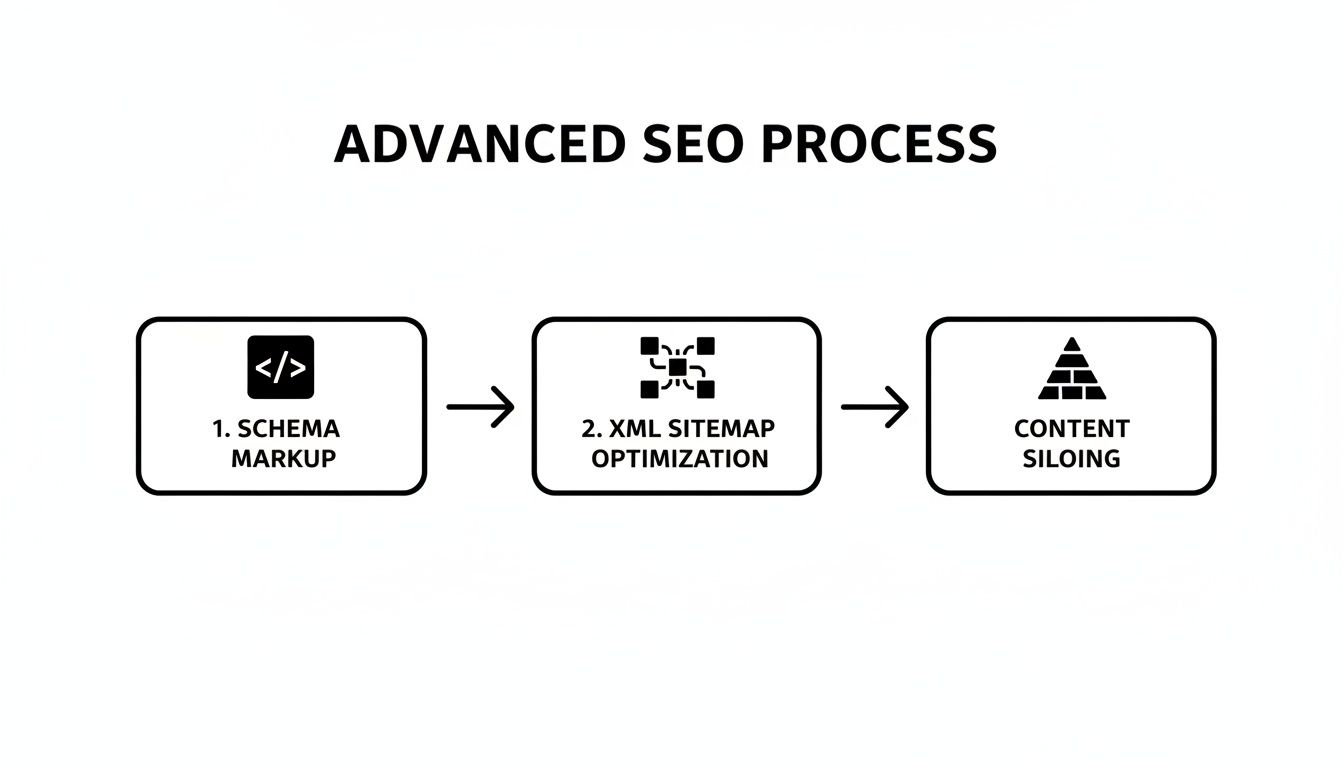
See how it flows from structured data to a comprehensive sitemap? This highlights a crucial point: these advanced techniques are how you ensure search engines fully understand and index every image you publish. Without them, you're leaving ranking potential on the table.
By following this structured approach, you're not just uploading pictures; you're systematically building a more powerful, search-friendly website. Consistency is what separates sites that stagnate from those that climb the rankings.
This checklist turns all that advice into a simple, scannable reference for every time you add a new visual to your site.
Got Questions About Wix Image SEO? We've Got Answers
Even with the best plan, you're bound to have questions. Let's be honest, getting your image SEO optimisation right has a few moving parts, so it's totally normal to need some clarity. Here are the straight-up answers to the questions we hear all the time from Wix users.
How Can I Tell if My Images Are Slowing Down My Site?
The quickest way to get an answer is to use a free tool like Google's PageSpeed Insights. Just pop in your website's URL, and it’ll spit out a full performance report.
Keep an eye out for a metric called Largest Contentful Paint (LCP). More often than not, a slow LCP points the finger directly at a massive banner or hero image. The report will even call you out, flagging things like "properly sized images" or "serve images in next-gen formats" if your visuals are the culprit. It gives you a perfect, non-negotiable starting point.
What's the Magic File Size for Web Images?
There isn't one single magic number, but here's a solid rule of thumb: try to keep your images under 200 KB. If you can get them closer to 100 KB, even better. For those huge, full-width hero images, you might have to push it to 300-400 KB, but that should be a rare exception, not the rule.
It's all about striking a balance. You're aiming for the smallest file size you can get without making your images look pixelated or blurry. This is exactly why compressing your images before you upload them is such a game-changer.
Consistently keeping your images in this size range is one of the fastest ways to improve your site's load time and stop visitors from bouncing. It's a small tweak with a massive payoff.
Is It Too Late to Go Back and Optimise My Old Images?
Absolutely not—and you definitely should! It’s one of those fantastic SEO housekeeping tasks to tackle when you find a spare afternoon. You can dive right into your Wix Media Manager and start updating the alt text for every image you've ever uploaded.
For the file sizes, you'll have to download the originals, run them through a compression tool, and then re-upload them to replace the old, clunky versions. Yes, it takes a bit of effort, but optimising your existing image library can give your site a very real boost in performance and search visibility, especially for older pages that have been collecting digital dust.
Ready to stop guessing and start getting actual results from your website? The team at Baslon Digital lives and breathes professional Wix SEO and web design that pulls in traffic and turns visitors into customers. Get in touch with us today and let's talk about growing your business.
Comments